This guides show you how to enable the LMS API within eJournal. Please note that this guide assumes you have the required privileges within the LMS.
Make sure you already integrated LTI, for more information see this guide.
If you already have an existing LMS API integration with eJournal, and just want to improve it by enabling a system account, login in with the existing system- or admin account and skip ahead to step 3.
¶ Step 1: Configure the API Key in the LMS
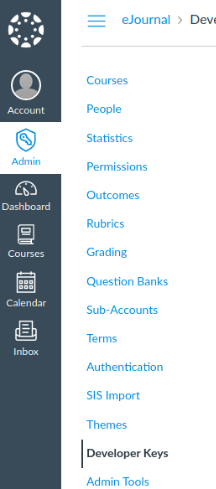
- Go in the admin settings to 'Developer Keys'
- Click on '+ Developer Key', then '+ API Key'
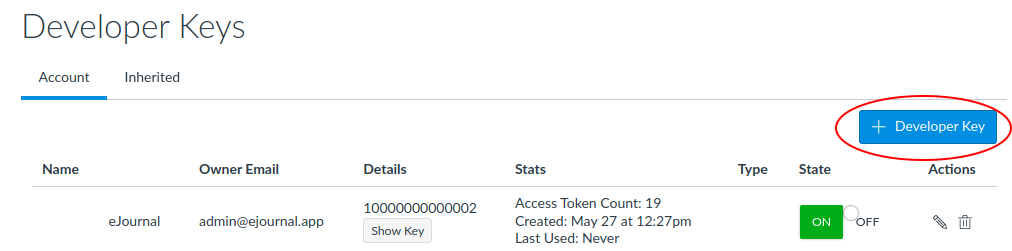
- Fill the following fields in as follows:
- 'Key Name': "eJournal API"
- 'Owner Email': "admin@ejournal.app"
- 'Redirect URIs':
https://api.[your institute subdomain].ejournal.app/lms/authenticate/
- eJournal makes use of the following scopes:
- Under 'Assignments'
- url:GET|/api/v1/users/:user_id/courses/:course_id/assignments
- url:GET|/api/v1/courses/:course_id/assignments
- Under 'Courses'
- url:GET|/api/v1/courses
- url:GET|/api/v1/courses/:id
- url:GET|/api/v1/courses/:course_id/students
- url:GET|/api/v1/courses/:course_id/users
- Under 'Sections'
- url:GET|/api/v1/courses/:course_id/sections
- Under 'Submissions'
- url:GET|/api/v1/courses/:course_id/assignments/:assignment_id/submissions/:user_id
- Under 'Users'
- url:GET|/api/v1/users/:id
- url:GET|/api/v1/users/:user_id/profile
- Make sure the 'Allow Include Parameters' option is enabled.

- Click on 'Save', and switch the state to 'ON'. The Client ID and Cliend secret can be found under 'Details'. The 'Show key' button showing the secret, and the value above being the Client ID. Report these back to eJournal.

- Go to 'Manage Extensibility'
- Under 'OAuth 2.0' click 'Register an App'
- Fill in the following fields:
- Application Name:
eJournal - Redirect URI:
https://api.[your institute subdomain].ejournal.app/lms/authenticate/ - Scope:
core:*:* enrollment:orgunit:read enrollment:own_enrollment:read orgunits:course:read groups:group:read sections:section:read role:detail:read users:userdata:read - Access Token Lifetime: 3600 (unchanged)
- Tick 'Prompt for user consent', 'Enable refresh tokens' and accept the 'Non-Commercial Developer Agreement'
- Click 'Register'
- Report back the 'Client ID' and 'Client Secret' to eJournal
¶ Scope information
| Scope | Path(s) | Motivation |
|---|---|---|
enrollment:orgunit:read |
|
Retrieve user data in order to synchronize users to eJournal. |
orgunits:course:read |
|
Retrieve course data in order to synchronize course to eJournal. |
enrollment:own_enrollment:read |
enrollments/myenrollments/ |
Fetching enrolled courses of the current user in order to import a submission to eJournal. |
groups:group:read |
|
Fetching the group categories and their groups in order to synchronize groups to eJournal. |
sections:section:read |
|
Fetching the sections in order to synchronize groups to eJournal. |
role:detail:read |
roles/ |
Fetching the Brightspaces roles in order to map these to eJournal roles. |
users:userdata:read |
users/ |
Retrieving user information used for user synchronisation. |
core:*:* |
|
|
We make use of the
core:*:*scope because we use some APIs that have not yet received their own dedicated scope. See the docs here.
¶ Step 2: Save the Client ID and secret in eJournal
- Go to the admin panel
- Select the integrations tab.
- Select the LMS section.
- Under the API header, store the values from the previous step.
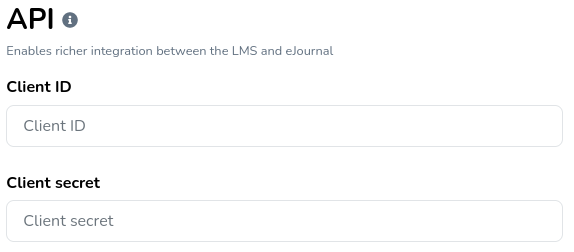
API successfully connected!
¶ Step 3 (Optional): Setup system account
Below the client secret, you will find the option to configure a system account. If configured, all synchronization calls will occur via the system-wide account. This is useful when not all users have access to all account information as it ensures that eJournal has enough permissions to retrieve all relevant information. To setup the account follow these steps:
In your LMS
- Navigate to the LMS
- Login with an existing system- or admin account or create a new account assign it the required access (see below) and login with this account
In your LMS you are now logged in as the existing or new system account to be.
In eJournal
- In eJournal navigate to the eJournal API setup and click on "authorize system account"
- Make sure you are logged in on the correct system account within the LMS before clicking "authorize system account". This should be the case if you followed the "In your LMS" steps from above. (If you are still uncertain wether this is the case you can enter an incognito tab and perform the steps again there to make sure the correct user sessions are in place).
- You will be requested to finish the authorization on the LMS in a new tab
- Once this is successful, close this tab and click on "verify token" in eJournal
- If all went went, you will get a confirmation toast
Advantages
- Sufficient certainty about both course membership and the current status of users.
- Keeping groups automatically up to date (including deletion), because we would then have a guarantee that the data is complete — this also applies to the points below.
- Keeping course members automatically up to date (including removal).
- Setting users to inactive (at present this information is not reliable enough).
- Complete user information (no gaps in attributes), so that:
- We prevent duplicate accounts;
- (Manual) bulk actions become possible, such as adding teacher entries (teacher-submitted evidence and/or results) and importing (collaboration) groups. At the moment these actions cannot always be matched to users because attributes are missing.
- Not all teachers get an individual authentication pop-up, which means we store fewer access tokens.
- With a dedicated system account you can scope the access properly, whereas the tokens we currently store are hard to keep track of and may grant broader access.
- Any future expansion of the API scope requirements can be handled centrally, instead of each user having to grant access separately again, with parts of the integration not being properly arranged in the meantime.
The system account is required to have the access to the following endpoints in all LMS courses where eJournal is used, this includes full access to the information that is returned (e.g. the login id as defined in User):
- GET /api/v1/courses/:course_id/users
- GET /api/v1/courses/:course_id/sections (including students)
In green is shown what is added by the system account:
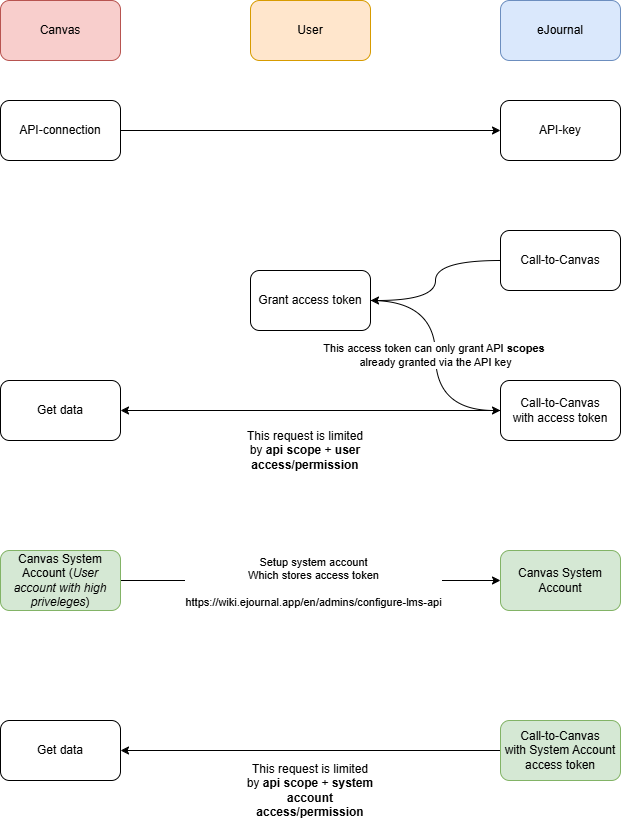
The final 'get data' call is no longer limited by the access of the user requesting the data. This is especially usefull when syncing course members, or preventing duplicate user accounts from being created due to missing information.
The system account is required to have the access to the following endpoints in all LMS courses where eJournal is used, this includes full access to the information that is returned (e.g. the username as defined in Enrollment.ClasslistUser):
- /d2l/api/le/(version)/(orgUnitId)/classlist/ [GET]
- /d2l/api/lp/(version)/enrollments/orgUnits/(orgUnitId)/users/ [GET]
- /d2l/api/lp/(version)/imsconfig/map/roles/ [GET]
- /d2l/api/lp/(version)/roles [GET]
- /d2l/api/lp/(version)/(orgUnitId)/groupcategories/ [GET]
- /d2l/api/lp/(version)/(orgUnitId)/groupcategories/(groupCategoryId)/groups/ [GET]
- /d2l/api/lp/(version)/(orgUnitId)/sections/ [GET]
- /d2l/api/lp/(version)/users/whoami [GET]
- /d2l/api/versions/check [POST]
Here is an example of such an account setup that can be imported in Brightspace and be used as a basis for the above: permissions system account.txt.
¶ Step 4: Let eJournal know the API is setup
Let your eJournal point of contact know the LMS API is successully connected, if you are unsure who your assigned point of contact is you can email support@ejournal.app.
¶ Step 5: Verification
When preferred, you can ask an eJournal staff member to verify the API connection.
To make sure the API integration is succesfully setup you can make use of the following test:
- Launch eJournal as a teacher using the LTI integration on assignment level.
- In the assignment editor, allow students to import LMS submissions.
- Launch eJournal as a student from the same assignment.
- Test if the student is able to import their LMS submission (or when the student has no submissions yet, at least is able to retrieve their courses).
That's it! If there is any issue, please reach out to your assigned point of contact (or support@ejournal.app).